A cross-platform desktop app that puts your live heart rate on screen while you stream, game or train. Your games, your lights and your session recap all react to it. Powered by HypeRate.
HypeRate Desktop reads the combat log World of Warcraft writes and drops a card into your overlay when it matters — boss kills, close calls and deaths, with your peak heart rate, lowest health and fight duration.
Live overlay preview
84
BPM
84
BPM
Live fight results
Boss Defeated, Close Call and You Died — with peak heart rate, lowest health and fight duration. You set how low your health has to drop.
Session insights
Questing solo? Get your Most Intense Enemy, Nemesis, Kill Streak and session peak — only when something new happened.
No addon needed
Reads the combat log WoW writes itself — nothing injected, no memory reading. Works with Retail and all Classic versions, WoW folder detected automatically.
Live match events
Pentakill, You Died, First Blood and every objective — Dragon, Baron, Herald, turrets. Assists count, and stolen objectives get their own card.
Close calls, your threshold
Survived a gank on 4% health? That's a card — with your peak heart rate and how long the fight lasted. You decide how low it has to get.
Zero setup
The game itself hands over the live match data while you play. No addon, no folder to pick, nothing typed into chat — switch the card on and you're done.
Enable Advanced Combat Logging once, then type /combatlog after every login.
Nothing to enable — League hands over the data itself while a match is running.
New in 1.0.9 · Home Assistant
Your room reacts too.
Your heart rate, your zones and every game moment go to your MQTT broker, and Home Assistant picks them up on its own. No YAML, no template sensors, no restart. A device called HypeRate Desktop simply appears.
A light that follows your zoneThe zone colour rides along as an attribute, so one automation covers every zone instead of one per colour.
Red when you dieWorks in World of Warcraft and in League, because both send the same event type.
A nudge when you stay highAbove 170 for two minutes? Your phone can say so.
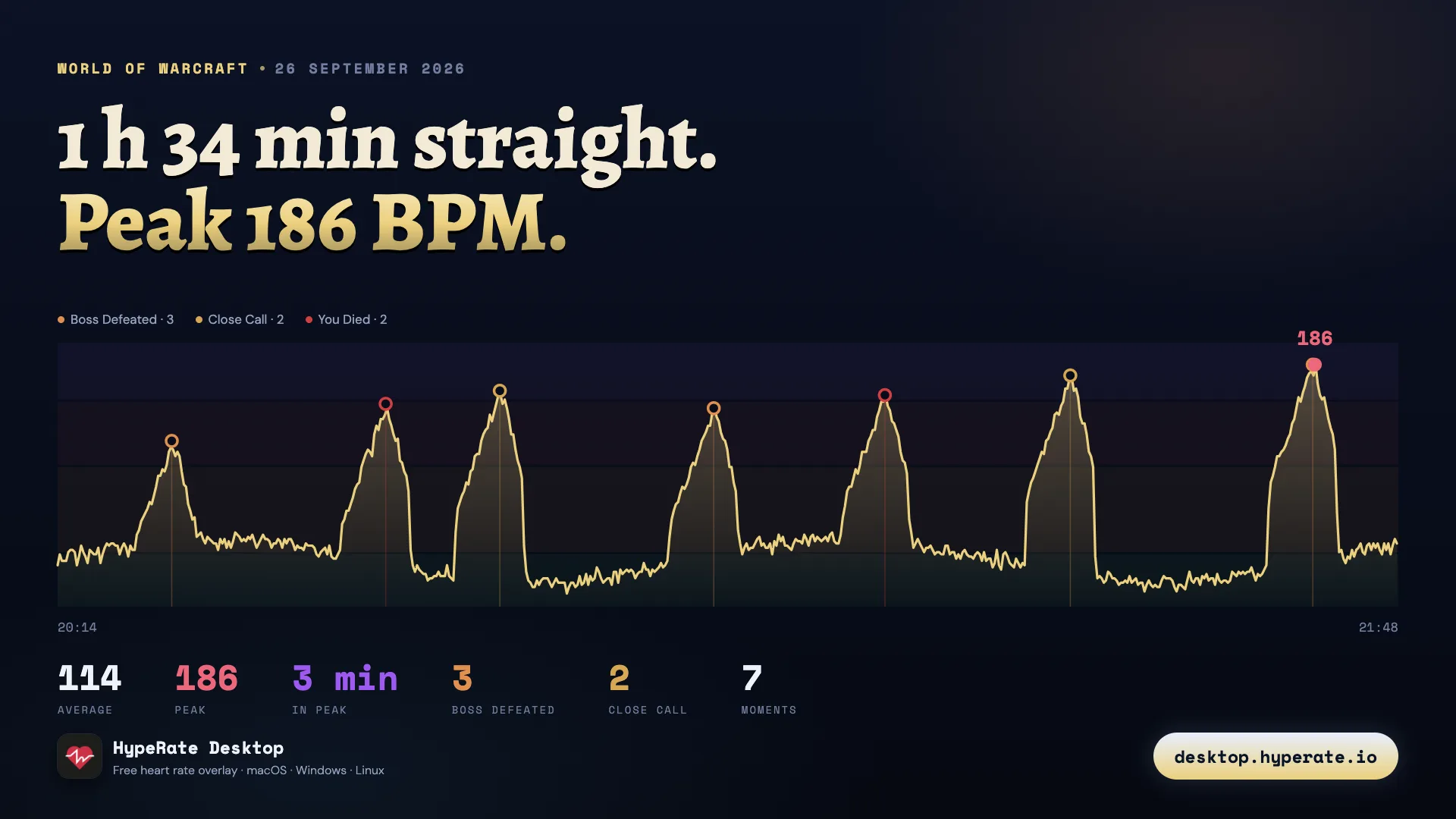
The app records while your heart rate is coming in, then turns the session into something worth posting: the curve, every game moment where it happened, and the numbers underneath.
No record buttonA session starts with the first heart rate and ends after a stretch of silence. You choose how long that silence has to be.
It knows what it is looking atWith a game it marks the moments. Without one it shows how long you spent in each zone.
Off until you want itRecording is opt-in, sessions expire after a number of days you set, and one button deletes all of them.
Features
Built for streamers and athletes.
Every feature is intentional. Nothing bloated, nothing missing.
New — Discord Rich PresenceShow your live BPM and zone name on your Discord profile — with a link to download the app for free.
New in 1.0.4
New — Bluetooth Direct ConnectionConnect your heart rate strap directly — no phone, no cloud, no HypeRate app required. Auto-reconnects if you step out of range.
New in 1.0.3
New — OSC IntegrationSend your live heart rate directly to VRChat. Drive avatar parameters in real time, straight from your wrist.
New in 1.0.2
New in 1.0.9
League of Legends Overlay
Pentakill, Close Call, You Died, Dragon, Baron — each with your peak heart rate. Riot's own live match data, so there is nothing to install or configure.
New in 1.0.7
World of Warcraft Overlay
Reads WoW's combat log and shows Boss Defeated, Close Call and You Died cards with your peak BPM — plus session insights like your Nemesis. Retail & Classic.
Live BPM Overlay
A floating, always-on-top widget showing your real-time BPM from your wearable. Stays above any app — games, OBS, browser, anything.
New in 1.0.3
Bluetooth Direct
Connect any BLE heart rate strap directly — Garmin, Polar, Wahoo, Coospo and more. No phone, no cloud. Auto-reconnects if you step out of range.
New in 1.0.9
Home Assistant
Your heart rate, your zones and your game moments go straight into your smart home over MQTT. The entities appear on their own, so there is no YAML to write. A lamp that follows your pulse, red when you die.
New in 1.0.9
Session Recap
Every session becomes one image: the heart rate curve of the whole evening with each game moment sitting where it happened. Recording is off until you switch it on, and one button deletes everything.
New in 1.0.4
Discord Rich Presence
Show your live BPM and active heart rate zone on your Discord profile. Friends see your real-time effort — powered by your zone names and colors.
New in 1.0.2
OSC · VRChat Integration
Broadcast your live heart rate directly to VRChat via OSC. Drive avatar parameters in real time from your wearable — no browser source, no third-party tool.
Heart Rate Zones
Define custom BPM zones with individual colors. The overlay color transitions automatically as you move between zones during your session.
BPM History Graph
A live chart tracks your heart rate over time in the settings panel. See your effort curve at a glance — no external tool needed.
Full Customization
Heart style, animation, color, glow, font (including all system fonts), layout, background, and border radius — all configurable in real time.
Menu Bar BPM
On macOS, your live BPM appears right next to the tray icon — always visible without the overlay consuming any game screen space.
Global Hotkey
Press ⌃⇧H from anywhere to instantly show or hide the overlay — no window switching required.
English & German
Full UI localization in English and German. Switch instantly from the title bar — labels, status messages, and the tray menu all update live.
Always Ready
Launches automatically with your OS and silently checks for updates on startup — the overlay is there before your first game loads, always on the latest build.
Setup
Running in under a minute.
No account creation, no configuration files, no complexity.
01
Install the app
Download the installer for your platform and run it. The app lives quietly in your system tray — no Dock clutter, no taskbar entry.
02
Enter Session ID
Open settings, paste your HypeRate Session ID from the HypeRate app, and hit Connect. The connection is instant.
03
Show Overlay
Click Show Overlay. A floating widget appears — drag it anywhere on your screen. It stays above every other window.
04
Stream & Play
Your heart rate is live. Your viewers see it. Customize the look to match your stream layout, then go.
Customization
Make it yours.
Every aspect of the overlay is tunable. Match it to your stream design, game HUD, or personal style.
Heart Styles & Animations
Filled, outlined, or emoji heart — with pulse, beat, bounce, shake, or glow animation.
Colors & Glow
Individual color pickers for heart, BPM text, label, background, and glow effects. Full hex input supported.
Fonts — Including System Fonts
Choose from presets (mono, serif, rounded, display) or use any font currently installed on your machine.
Layout & Background
Horizontal or vertical layout. Transparent, blurred, or solid background. Adjustable corner radius and optional border.
Preview — overlay variants
98 BPM
Default · Pulse
158 BPM
High Zone · Red · Glow
72 BPM
Heart Rate Zones
Download
Free for everyone, forever.
No subscription, no login required, no telemetry. Just download and run.
Free and open source — view source on GitHub · A HypeRate ID is required to stream via cloud. Bluetooth Direct works without one.
FAQ
Common questions.
Yes. HypeRate Desktop publishes your heart rate, your current zone and your in-game moments to any MQTT broker, and Home Assistant creates the entities on its own through MQTT discovery. No YAML, no template sensors. The zone colour travels along as an attribute, so one automation can colour a light for every zone instead of one per colour. The broker password is encrypted with your operating system’s keychain. Full guide.
Yes. The app records while your heart rate is coming in and turns the session into one image: the curve of the whole session with every game moment marked where it happened, plus average, peak and time per zone. Recording is off until you switch it on, sessions expire after a number of days you choose, and one button deletes all of them.
No account is needed. You only need your personal HypeRate Session ID, which you can find in the HypeRate app. Simply paste it into HypeRate Desktop and connect — that's it.
HypeRate supports a wide range of devices, including Apple Watch, Wear OS, Garmin, Fitbit, Amazfit, Polar, and other compatible heart rate sources. View all supported devices →
Yes, completely free. No subscription, no in-app purchases, no hidden fees. HypeRate Desktop is open source and will remain free.
Yes. The overlay runs as a native always-on-top window, so it works alongside any streaming software. In OBS, simply add a Window Capture or Game Capture source, or use a Display Capture to include it in your stream.
This usually happens when a game runs in exclusive fullscreen mode. Switch your game to Borderless Windowed mode and the overlay will appear correctly on top.
It depends on how you connect your heart rate monitor.
HypeRate Cloud (WebSocket): An active internet connection is required — the app connects to the HypeRate service via WebSocket to receive your live BPM data.
Bluetooth Direct (BLE): No internet connection needed. Connect any compatible BLE heart rate strap directly to the app — everything happens locally on your device.
No. HypeRate Desktop stores only your preferences (appearance settings, overlay position) locally on your device. No telemetry, no analytics, no data collection.
HypeRate Desktop checks for new releases automatically on launch. When an update is available, a badge appears in the title bar. Click it to go to the download page and grab the latest version.
This warning comes from Windows Smart App Control or SmartScreen because HypeRate Desktop is not yet signed with a commercial code-signing certificate. It is completely safe to install.
SmartScreen (blue dialog): Click "More info" → "Run anyway". Smart App Control (Windows 11): Right-click the installer → Properties → check "Unblock" → OK, then run it. Alternatively, go to Windows Security → App & Browser Control → Smart App Control and switch it to Off temporarily.
macOS Gatekeeper blocks apps that are not notarized with an Apple Developer certificate. HypeRate Desktop is safe to run — here's how to allow it:
Step 1: Try to open the app once — you will see the warning dialog. Close it.
Step 2: Go to System Settings → Privacy & Security, scroll down and click "Open Anyway" next to the HypeRate Desktop entry. Confirm with your password or Touch ID.
The app will open normally from that point on. You only need to do this once.
OSC (Open Sound Control) is a network protocol that VRChat uses to let external apps control avatar parameters in real time. HypeRate Desktop can send your live BPM directly to VRChat via OSC — no browser source, no OBS plugin, no third-party tools needed.
To enable it, open HypeRate Desktop, go to the OSC tab in settings, enable OSC output, and make sure VRChat is running with OSC enabled (Options → OSC → Enable inside VRChat). Your heart rate will be sent to the /avatar/parameters/Heartrate parameter automatically.
There are two settings in Discord that must be enabled for Rich Presence to appear:
1. Enable Activity Status in Discord: Open Discord → User Settings (⚙) → Activity Privacy → enable "Display current activity as a status message".
2. Make sure Discord is running before you enable Rich Presence in HypeRate Desktop. The app connects to Discord via a local IPC socket — Discord must be open for the connection to succeed.
Note: Discord does not show your own Rich Presence on your profile — it is only visible to others. To verify it's working, check the member list in a server or ask a friend to look at your profile.
League of Legends needs no setup at all — switch the card on, and while a match runs the game hands over its own live data. You get cards for pentakills, close calls, deaths and objectives.
World of Warcraft needs two things once: turn on Advanced Combat Logging and type /combatlog after every login. Full WoW guide →
In both games you can switch every single card on or off, and no addon is installed into either game.
1. In WoW, turn on Advanced Combat Logging once (Esc → Options). 2. Type /combatlog in the chat after every login. 3. In HypeRate Desktop, open the World of Warcraft card, switch it on and click Show Overlay.
HypeRate Desktop only reads the combat log file WoW writes itself — no addon, nothing injected into the game. Full setup guide →
Two packages are available for Linux:
AppImage (recommended — works on any distro, no install needed): chmod +x "HypeRate Desktop-1.0.11.AppImage" && ./"HypeRate Desktop-1.0.11.AppImage"
tar.gz (manual extract): tar -xzf hyperate-overlay-1.0.11.tar.gz && ./hyperate-overlay-1.0.11/hyperate-overlay
On Wayland, if the overlay doesn't appear on top, try launching with GDK_BACKEND=x11 as a prefix.